
Product Tour
Inside Vantara.
One connected workspace.
Explore the screens behind AI calling, lead discovery, LinkedIn outreach, meetings and follow-through. See what your team can configure, run and review.
These are screens from Vantara's interface with fictional companies, contacts, conversations and results. Figures illustrate the product and are not customer results or promised performance. Features follow your plan, connections and configuration.
Workspace and performance
Inspect activity, outcomes and the evidence behind the next decision.
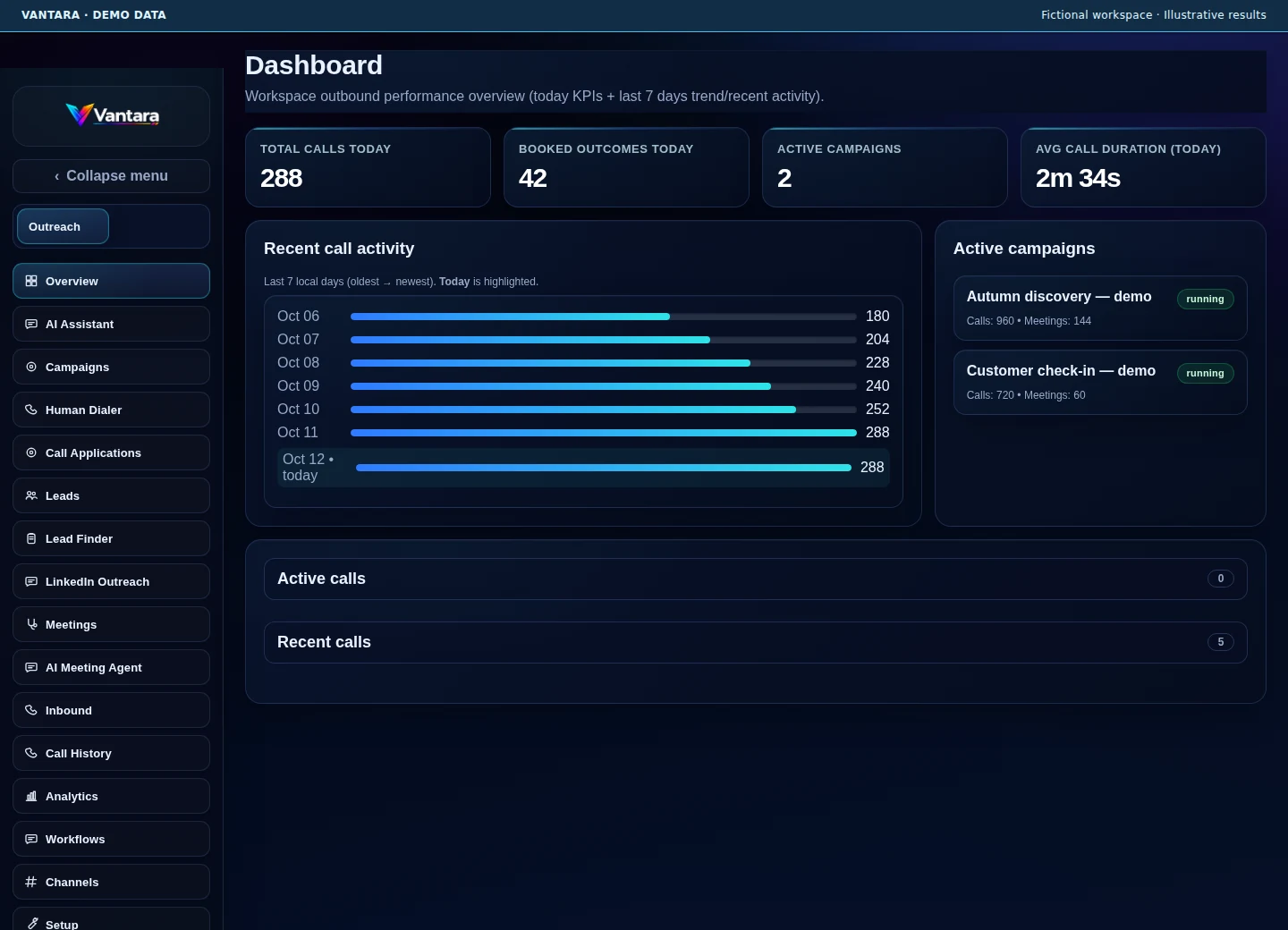
A workspace overview
Today's calls, booked outcomes, active campaigns and recent contacts appear together. The populated figures shown here are illustrative demo results.
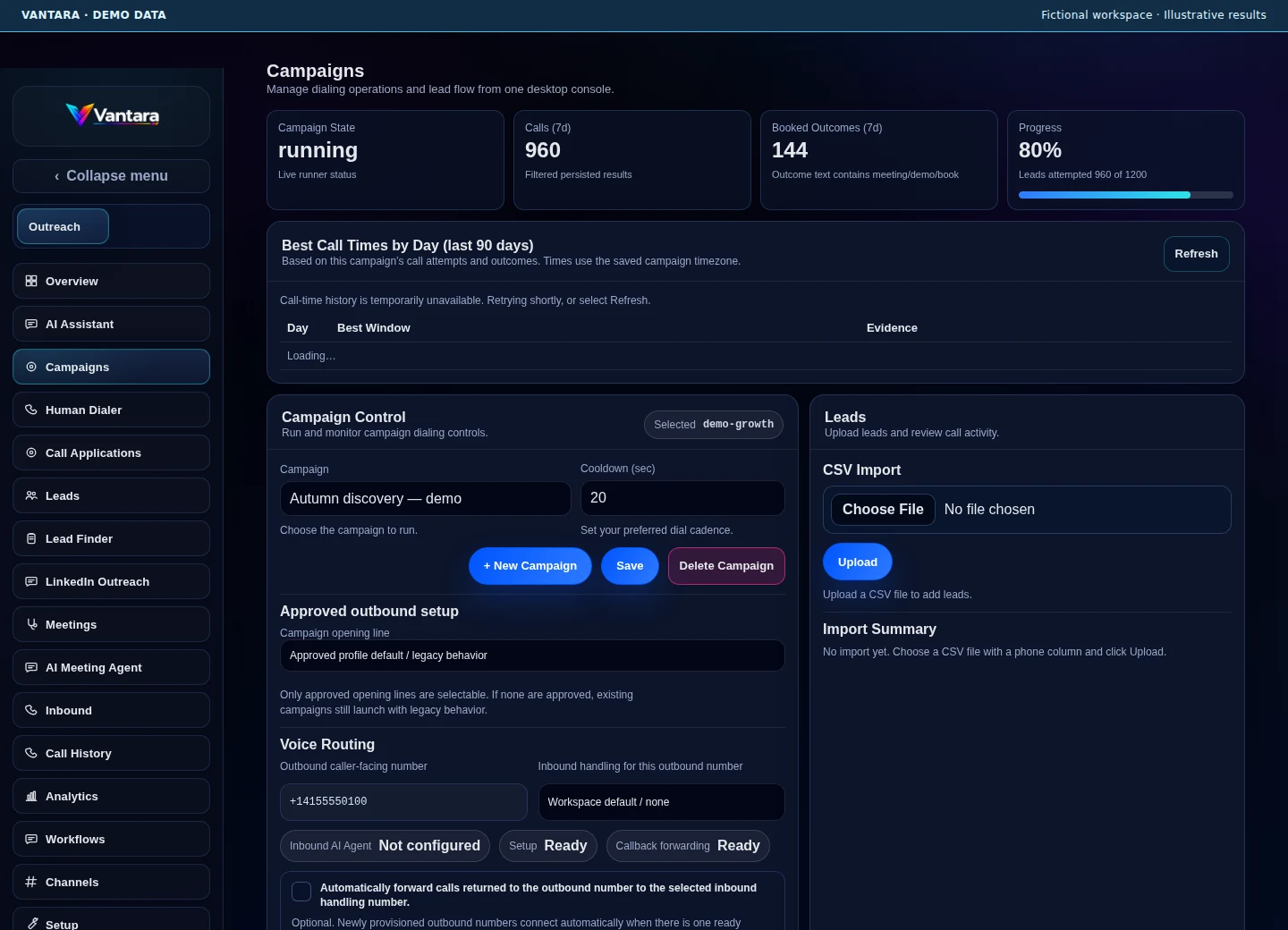
Campaign control and progress
Review the selected campaign, lead progress, calling schedule and status. Start, pause, resume or stop campaigns within the configured permissions and allowances.
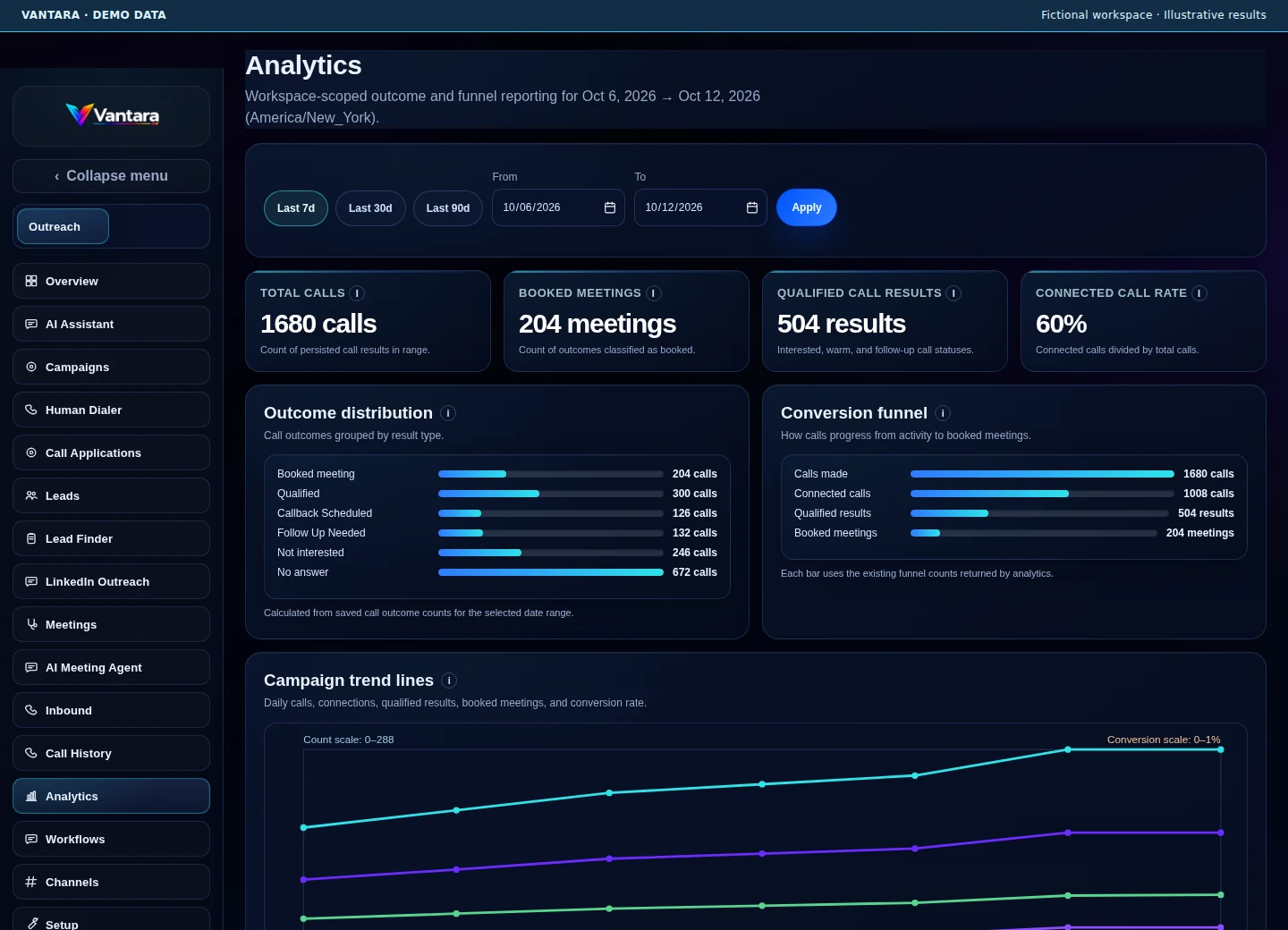
Outcomes and conversion funnels
Compare calls, connected conversations, qualified results and booked outcomes. Use date filters and campaign comparisons to inspect recorded activity.
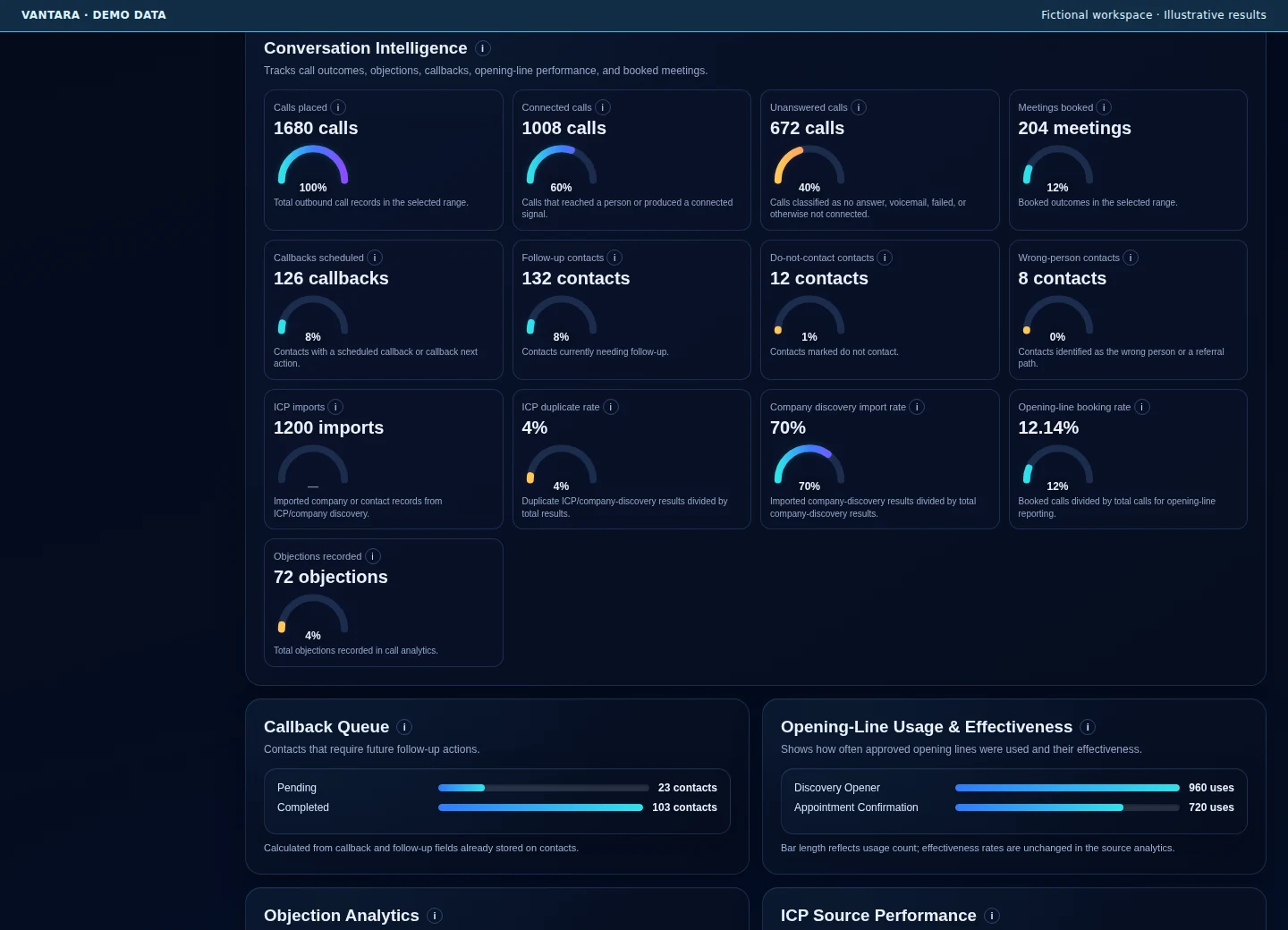
Conversation intelligence
Review callback signals, opening-line usage, objections, source performance and channel outcomes. Dedicated Call Intelligence activation is separate and is not currently exposed.
Find and prepare contacts
Move from a search to a reviewed list and a clear next action.
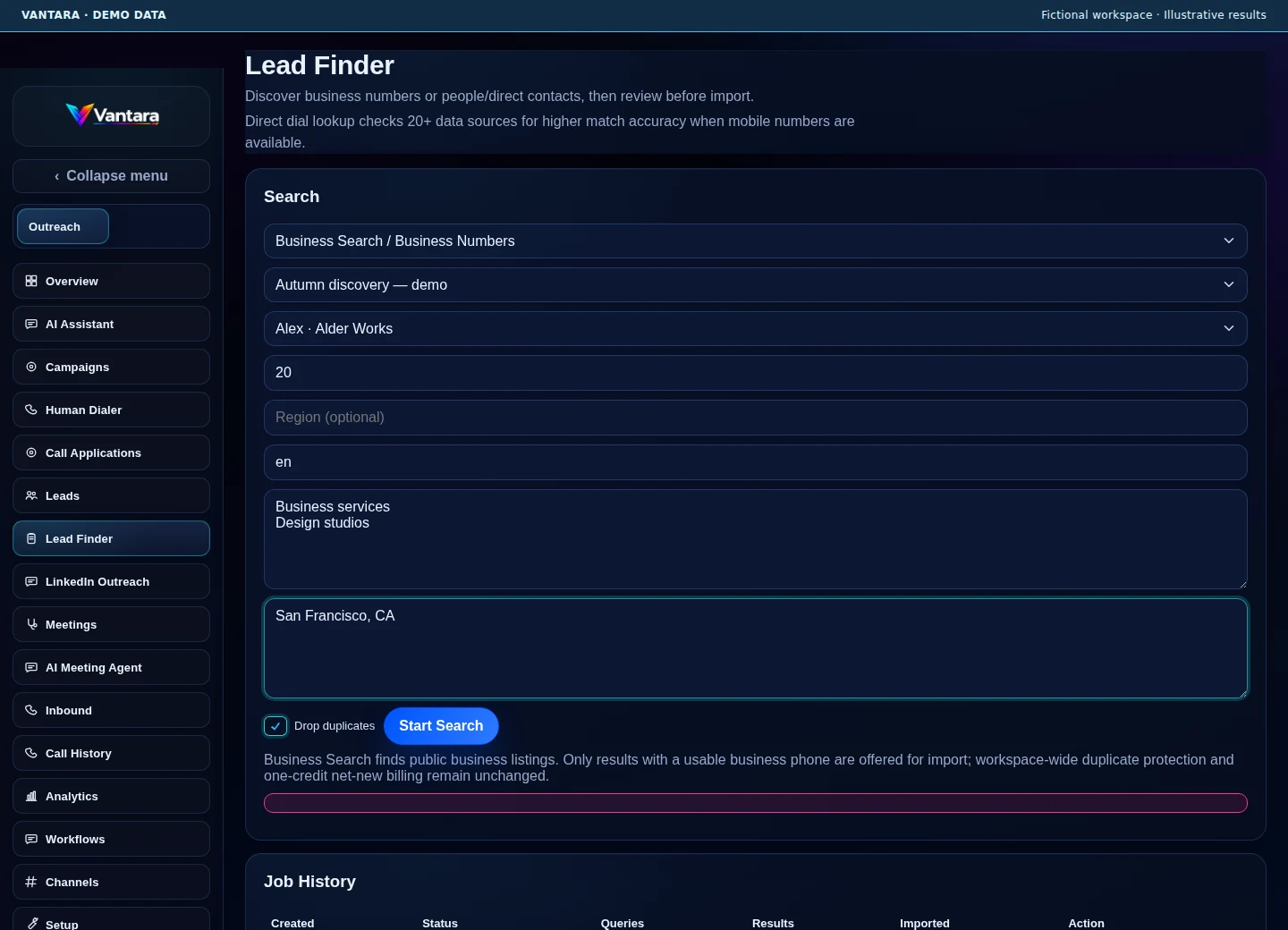
Lead discovery
Choose the campaign, audience and search criteria before preparing candidates. Lead Finder depends on connected sources and the underlying data available.
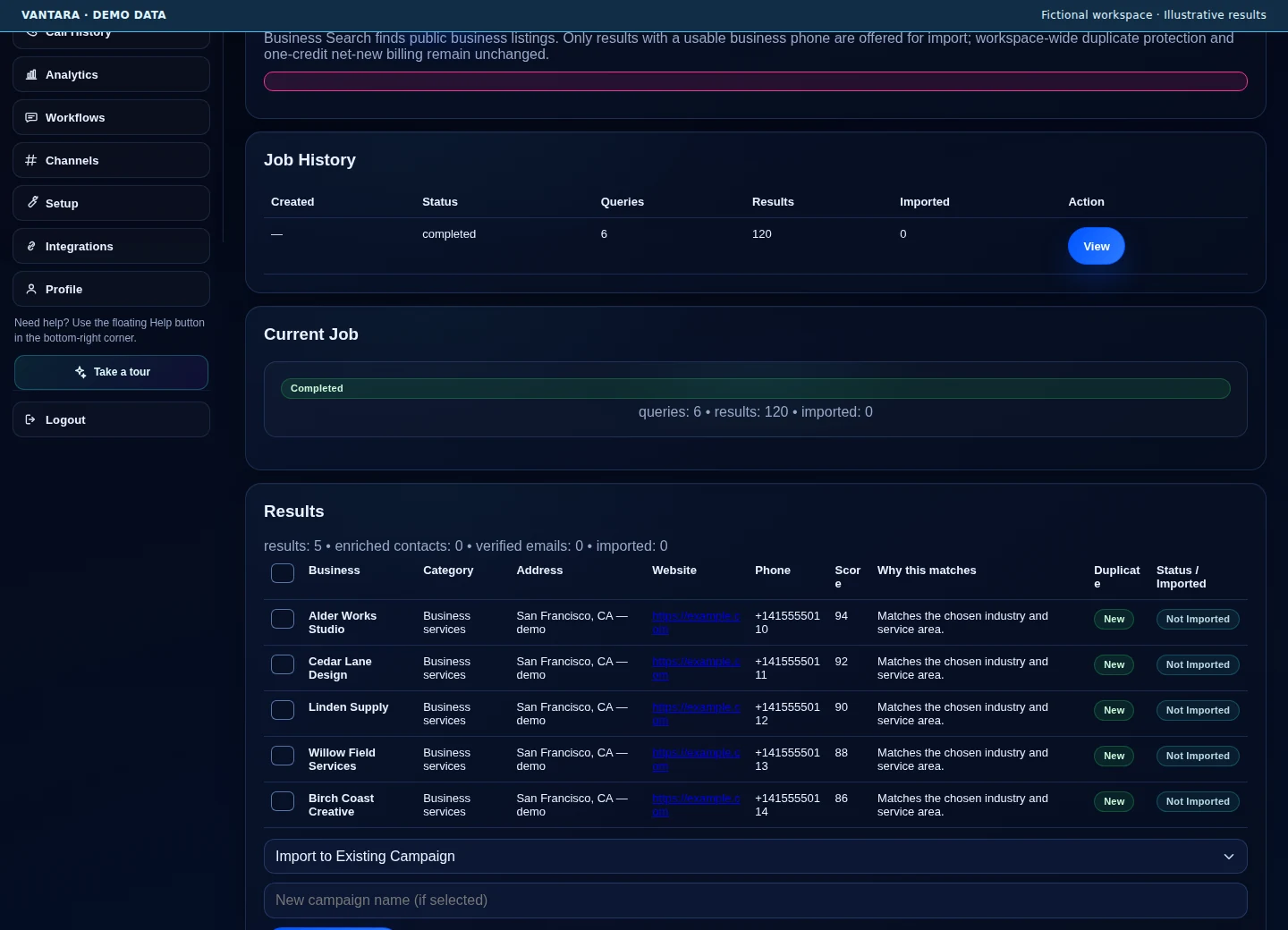
Review before importing
Inspect matching businesses, contact details, match explanations and duplicate flags before selecting results for import. All example contacts shown here are fictional.
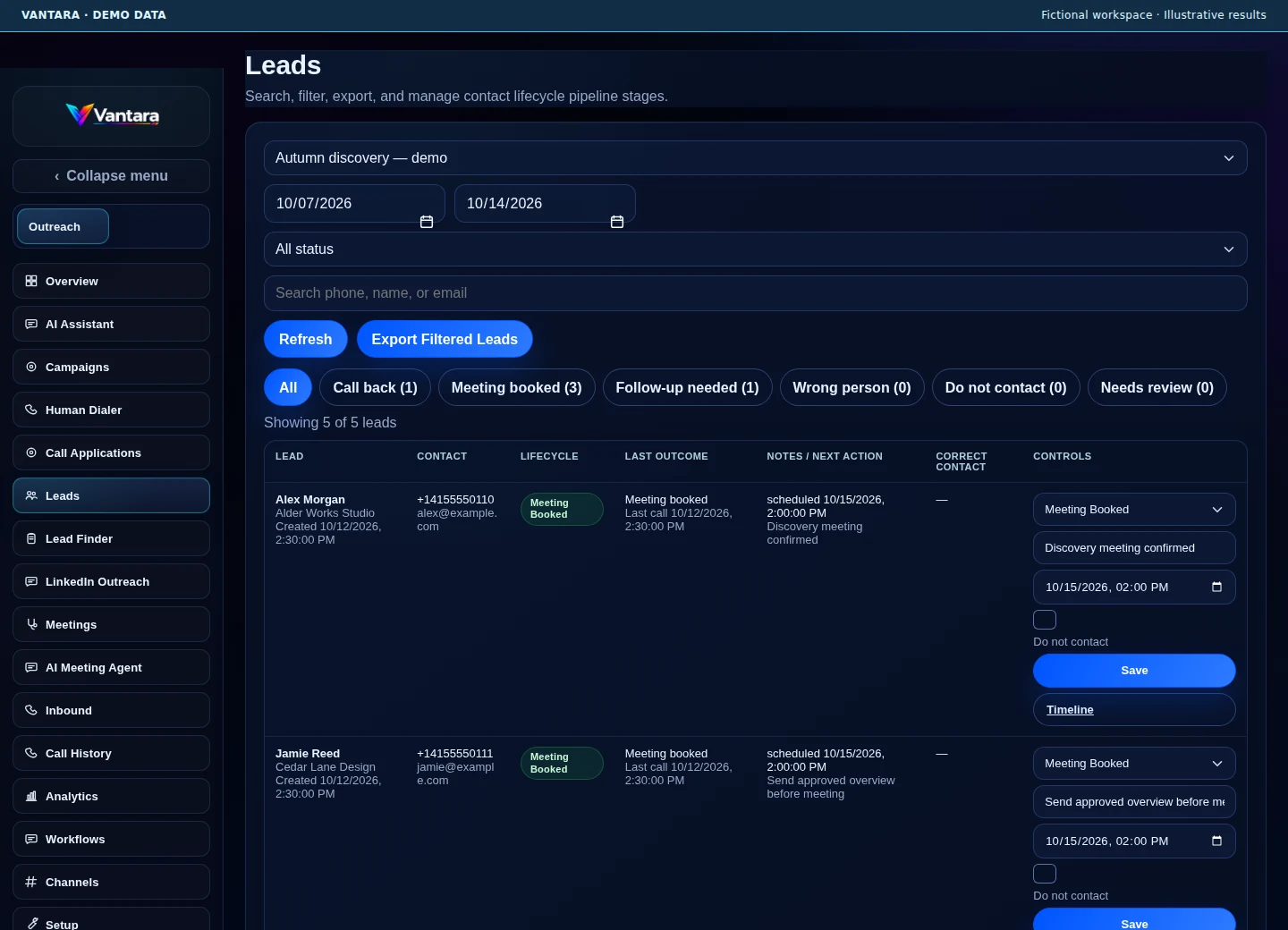
Contact lifecycle and next actions
Keep the campaign, last outcome, callback timing, follow-up notes and do-not-contact state together. Open a contact timeline to review the events behind its current stage.
Calling and follow-through
Choose the call's purpose, then keep the next step visible.
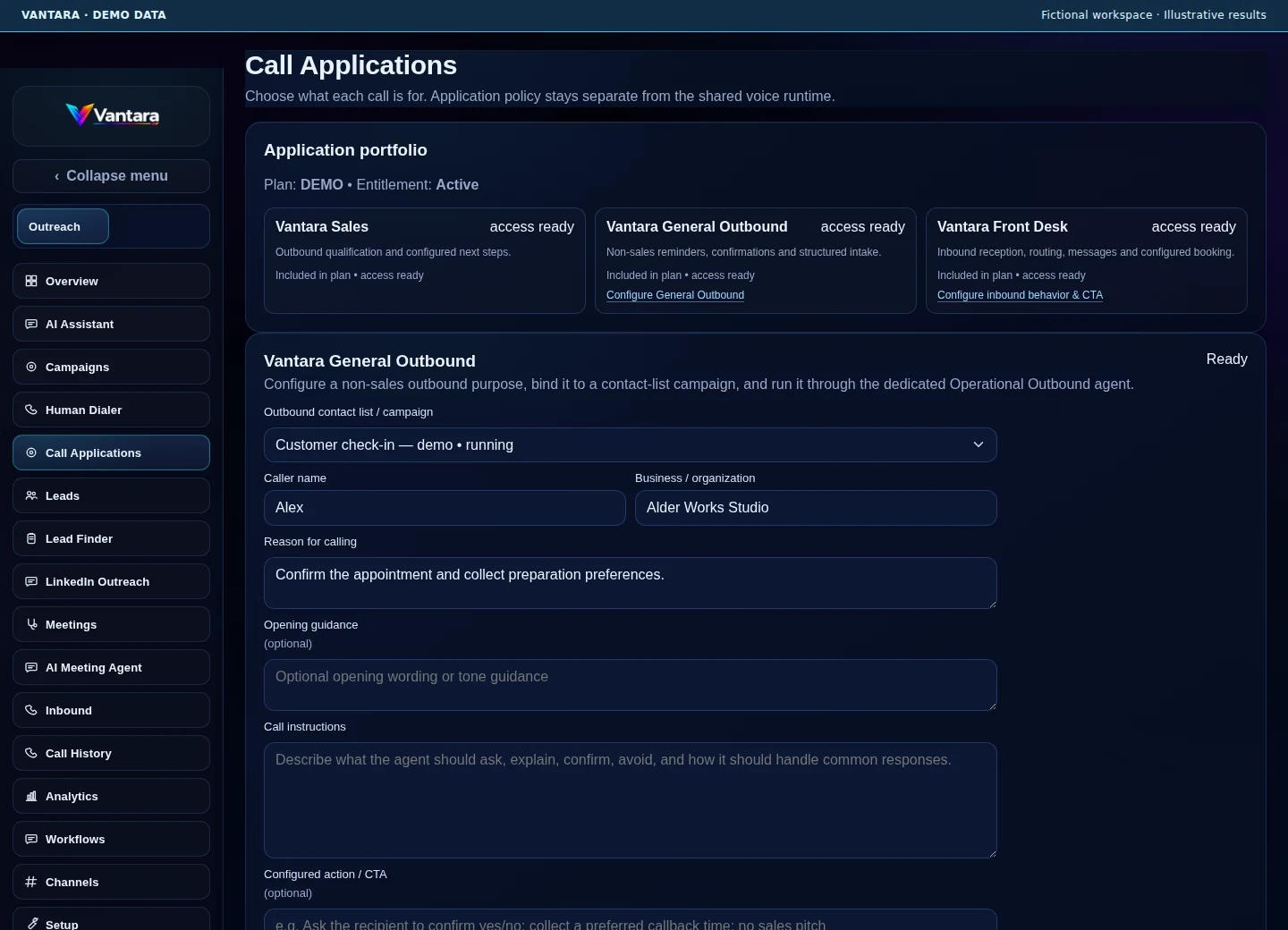
Purpose-specific Call Applications
Sales, General Outbound and Front Desk serve different purposes on the shared voice platform. Application access and execution depend on plan and setup.
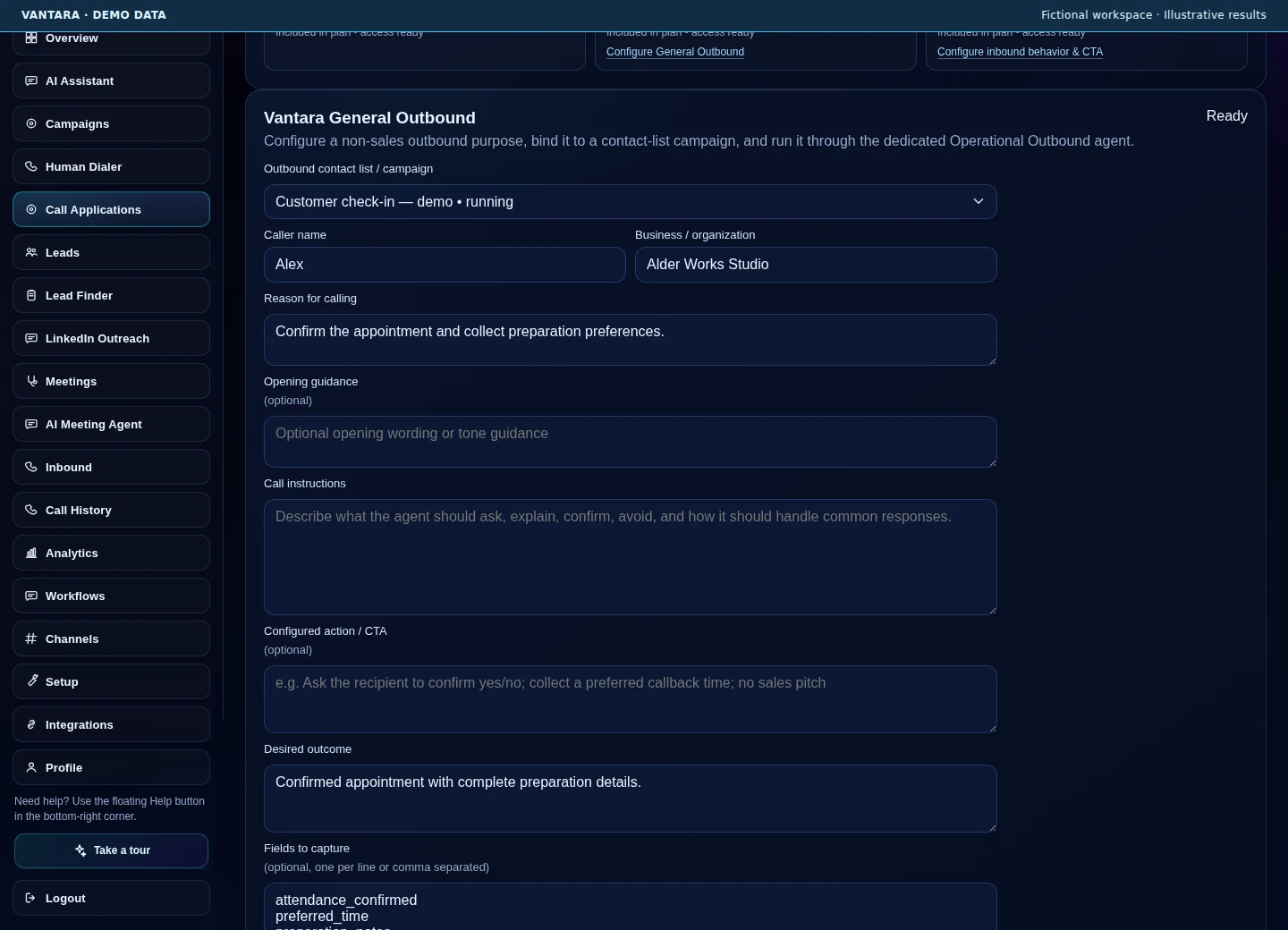
Non-sales outbound intake
Configure General Outbound for confirmations, reminders, surveys or structured information capture. Set a purpose, desired outcome and capture fields for the non-sales workflow.
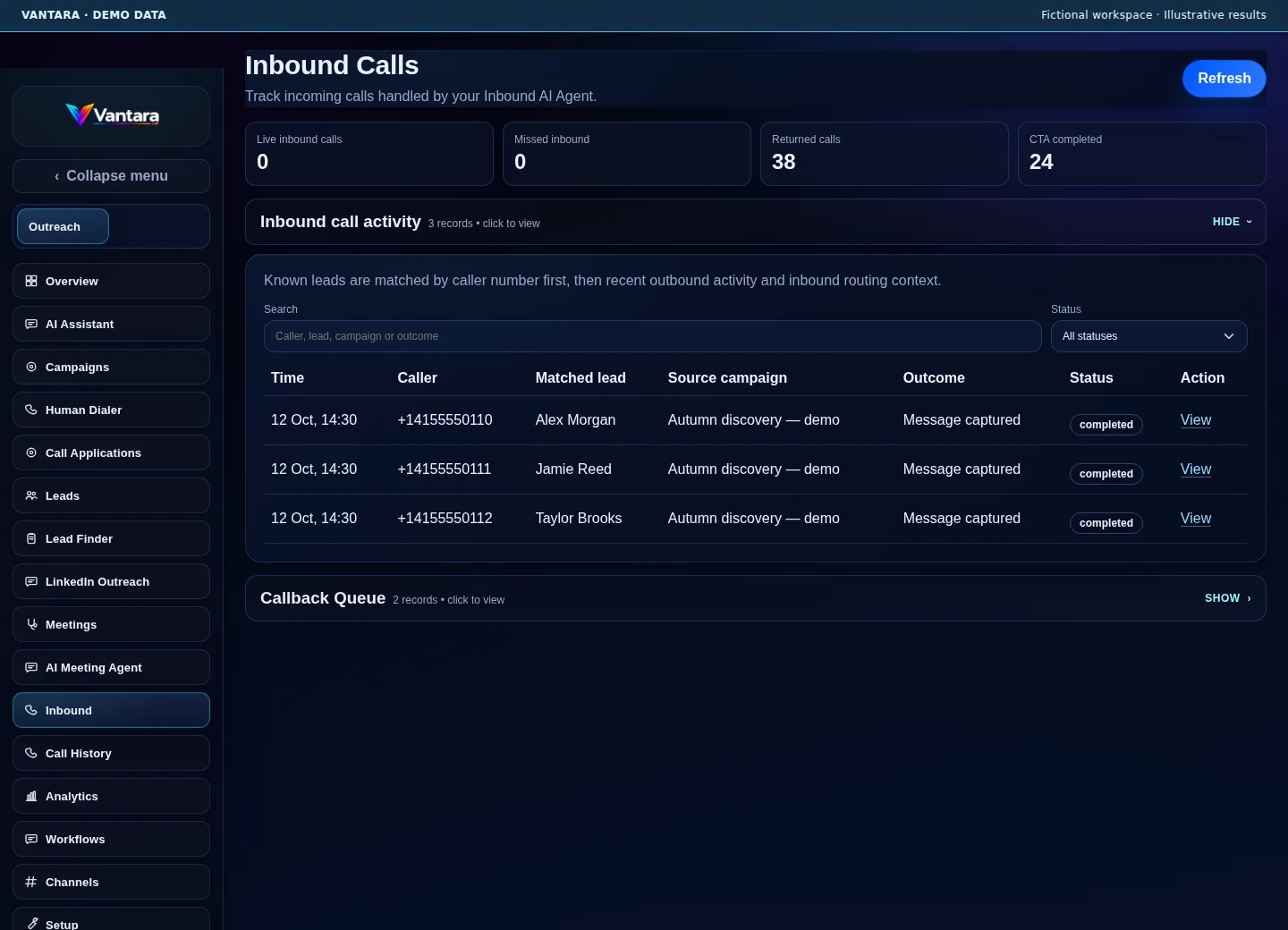
Incoming and returned calls
Review inbound activity, matched contacts, returned calls and recorded next steps. Front Desk follows the configured inbound identity, business knowledge and allowed actions.
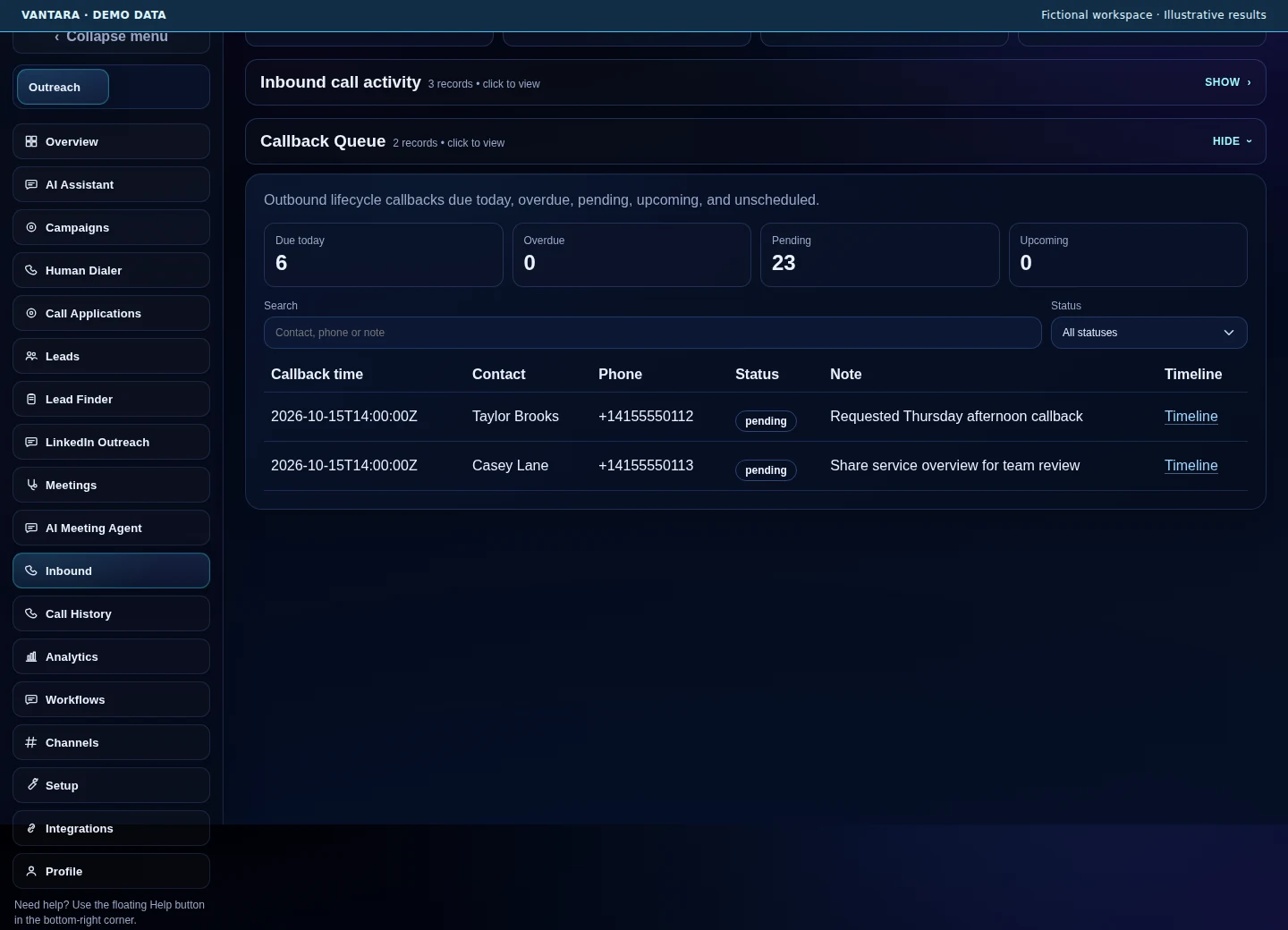
A reviewable callback queue
See agreed callback timing and contact context, with due and overdue work separated. Keep follow-through visible without treating an unanswered call as a booked outcome.
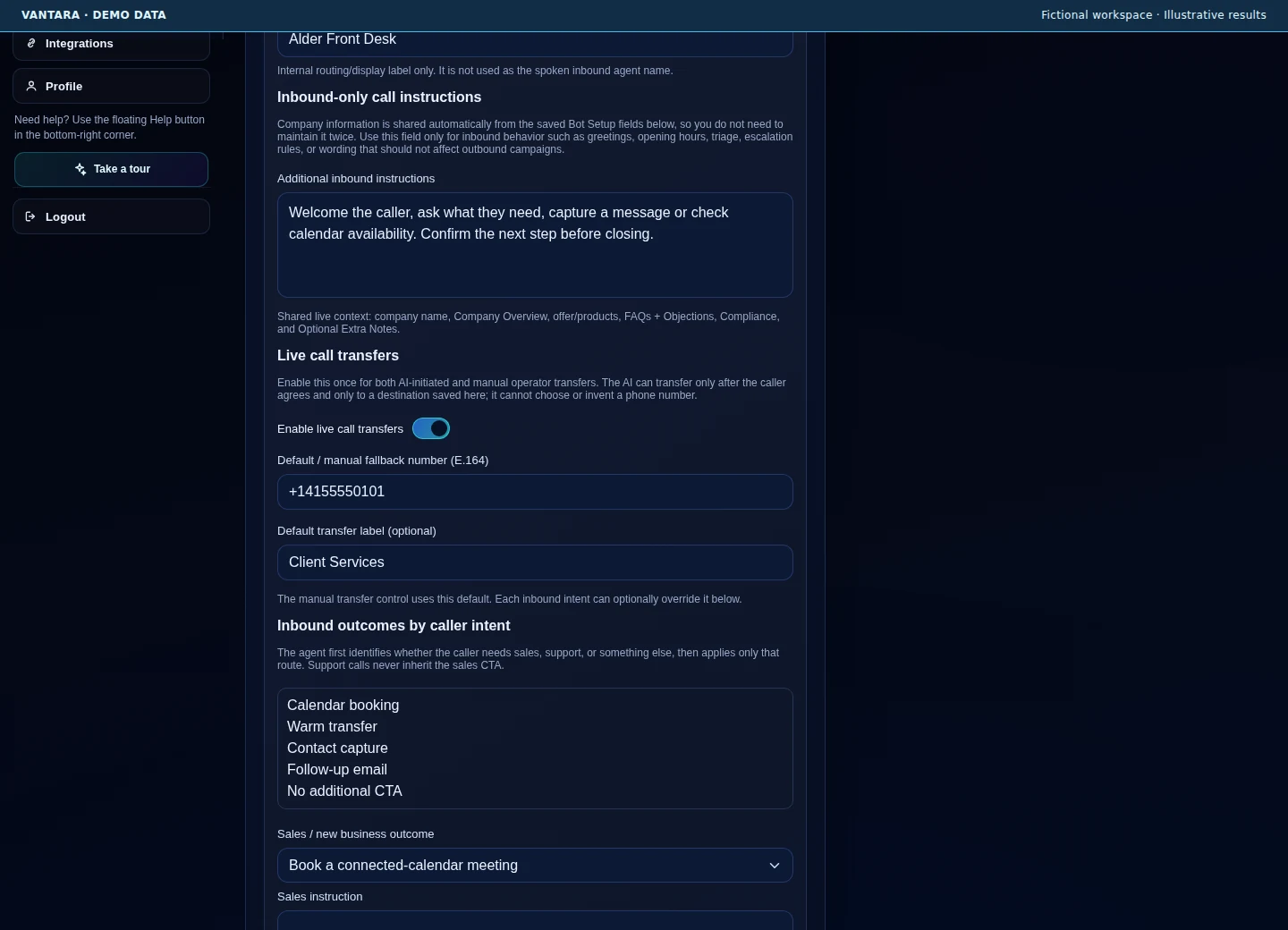
Front Desk instructions and handoff
Set the inbound caller identity, approved instructions and supported transfer destination. Live transfer and calendar booking depend on provider and workspace configuration.
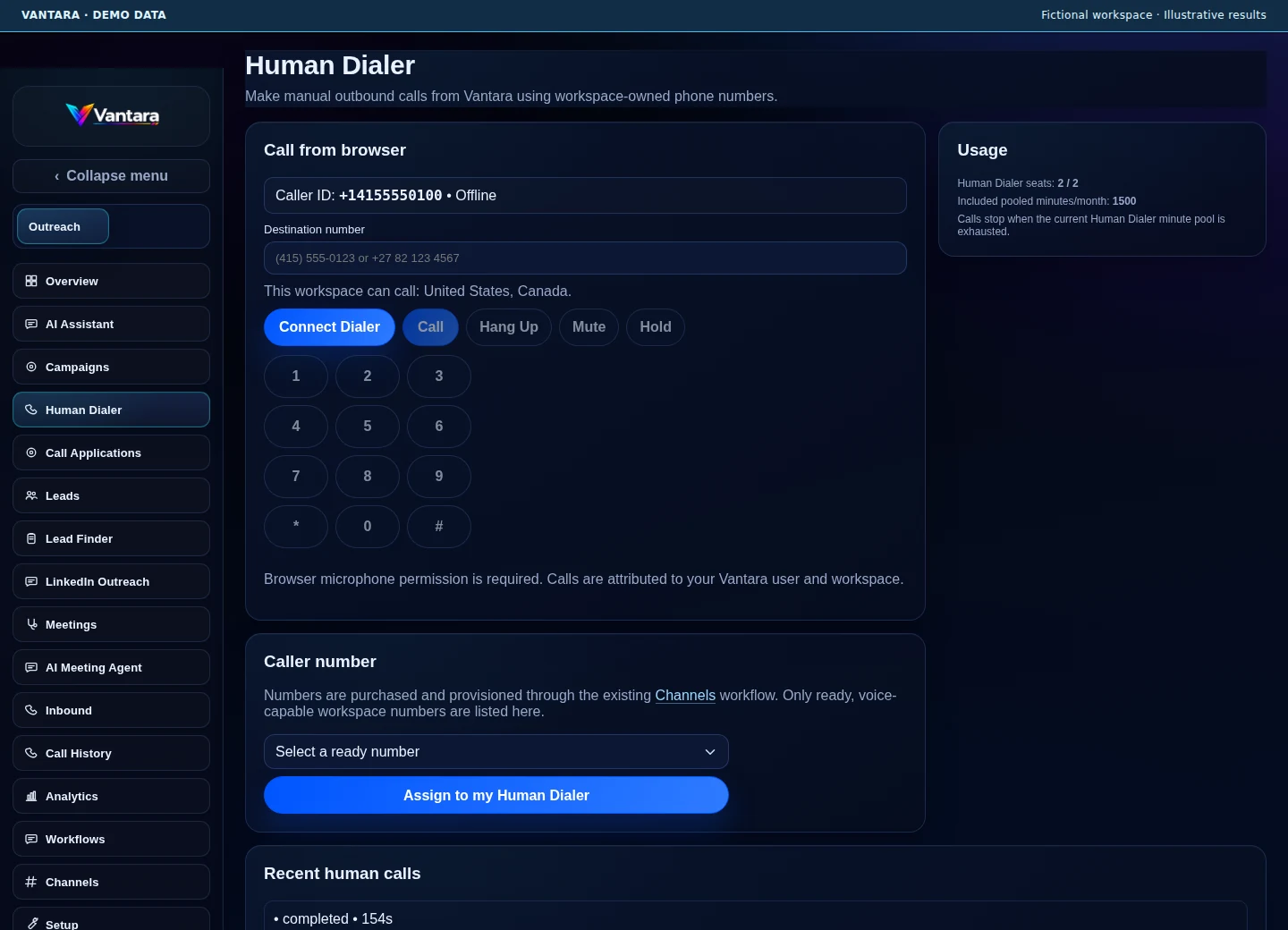
Human Dialer
Assigned users can make browser-based calls from ready workspace numbers. Review seats, minute pools, destination rules and supported recording, transcription and summary settings.
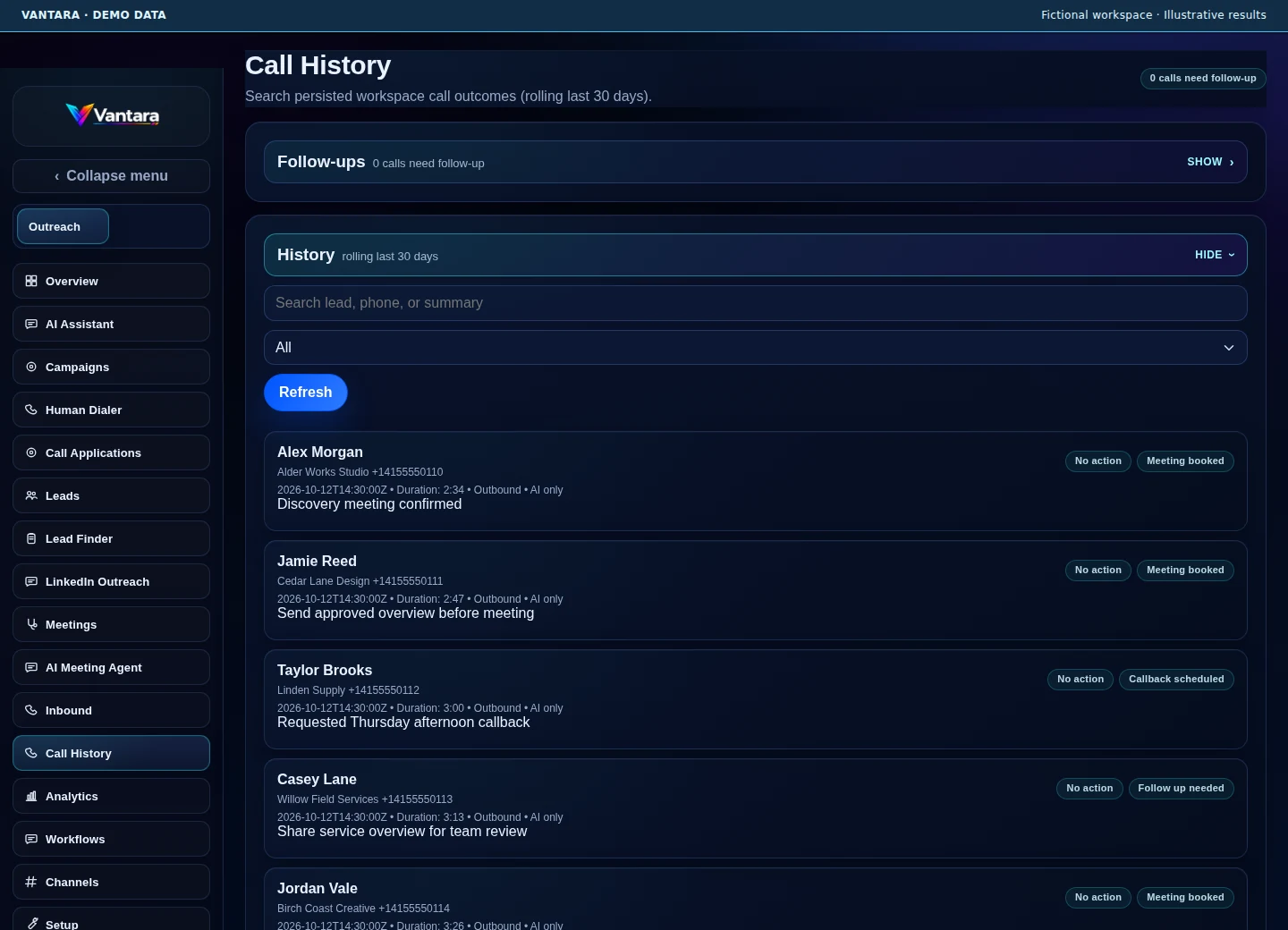
Call history with context
Review the called contact, direction, duration, outcome and grounded summary. Follow-up information and recordings or transcripts appear where the enabled workflow supports them.
LinkedIn outreach
Keep sender readiness, contacts and sequences in the same workspace.
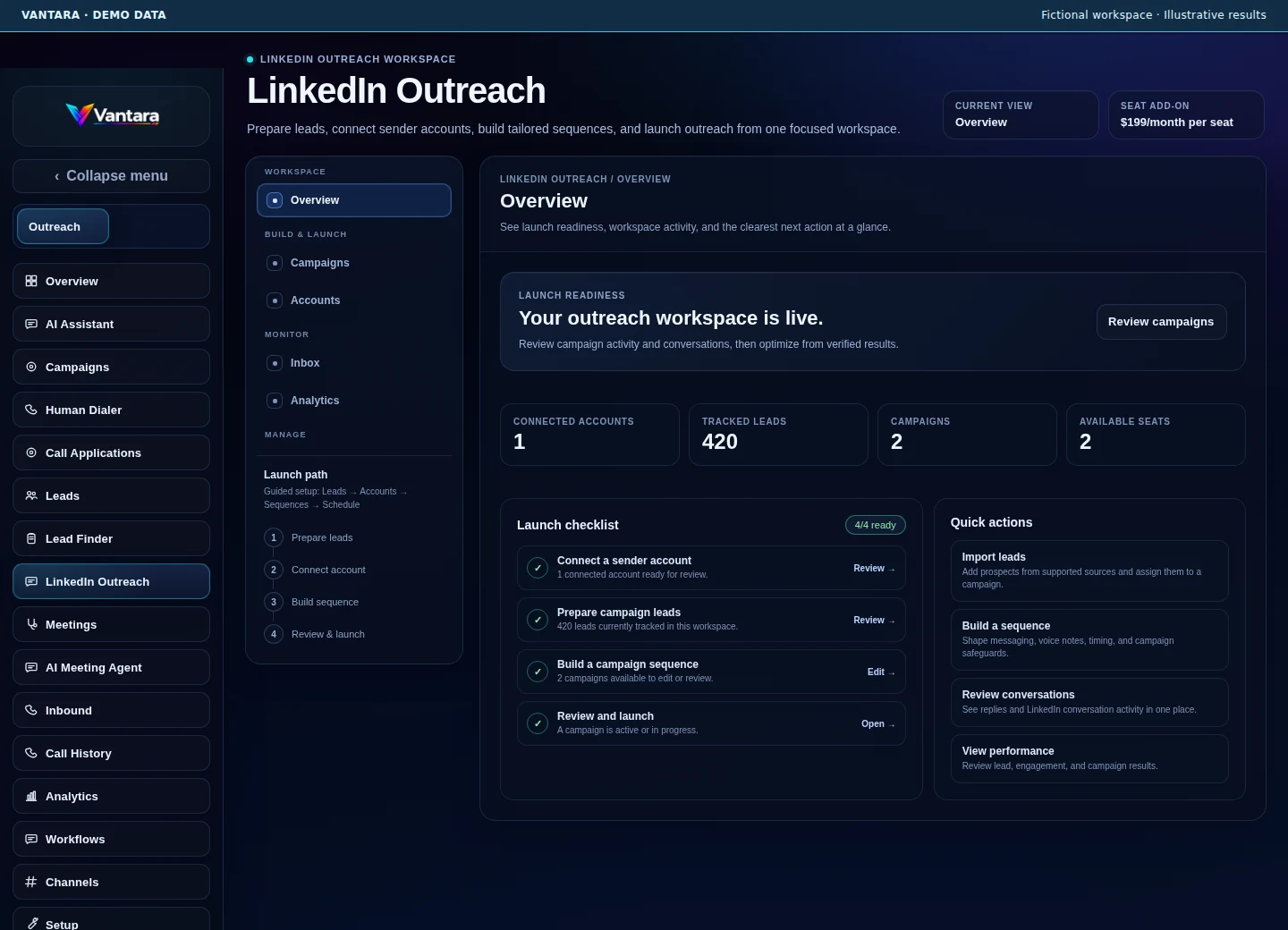
A connected outreach workspace
Review sender connections, tracked leads, campaign sequences and launch readiness. LinkedIn activity follows account readiness, seat access, schedules and action limits.
Meetings and AI participation
Carry the conversation into captured context and agreed next steps.
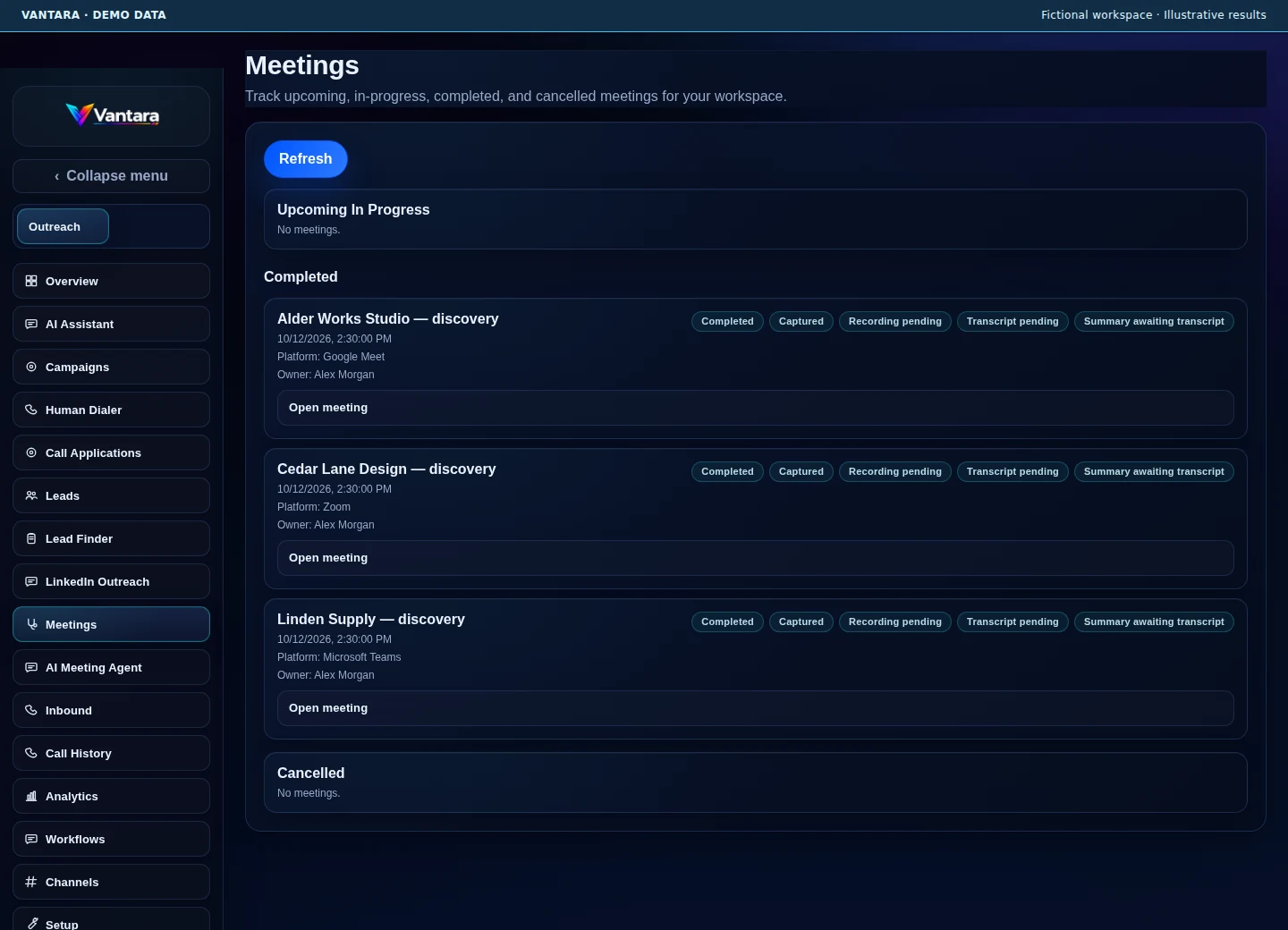
Meeting capture across configured platforms
Review upcoming and completed meetings, owners and capture status. Configured Google Meet, Zoom and Microsoft Teams paths can supply recordings, transcripts and summaries where available.
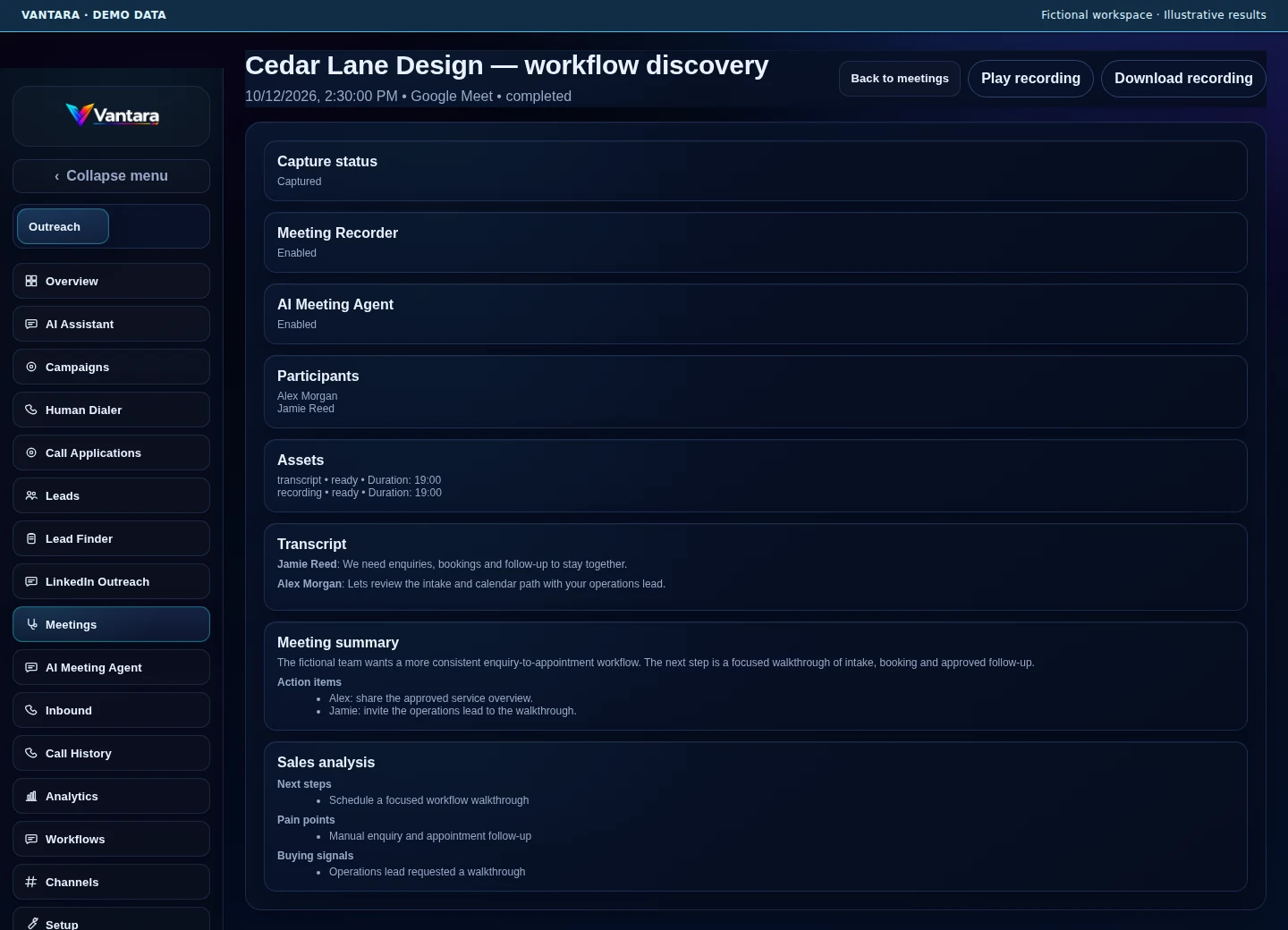
Meeting summaries and action items
Open participant context, captured assets, transcript, summary and analysis. The fictional conversation demonstrates how agreed actions stay reviewable after a meeting.
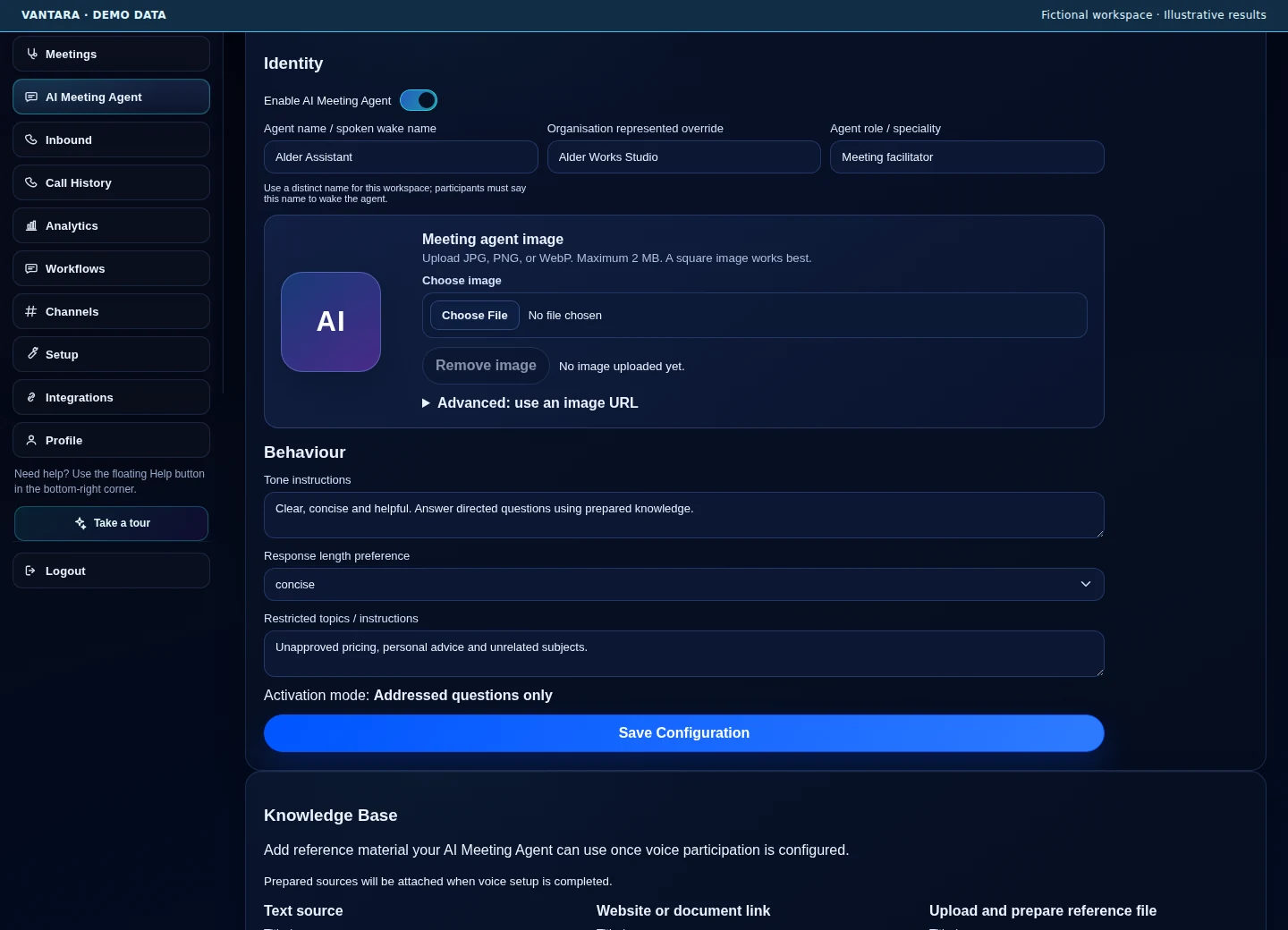
A distinct AI Meeting Agent
Configure the agent's name, organization, role, voice and prepared knowledge. Enabled participation answers directed questions within configured knowledge and topic boundaries.
Setup, workflows and connections
Prepare approved context and connect the tools your workflow needs.
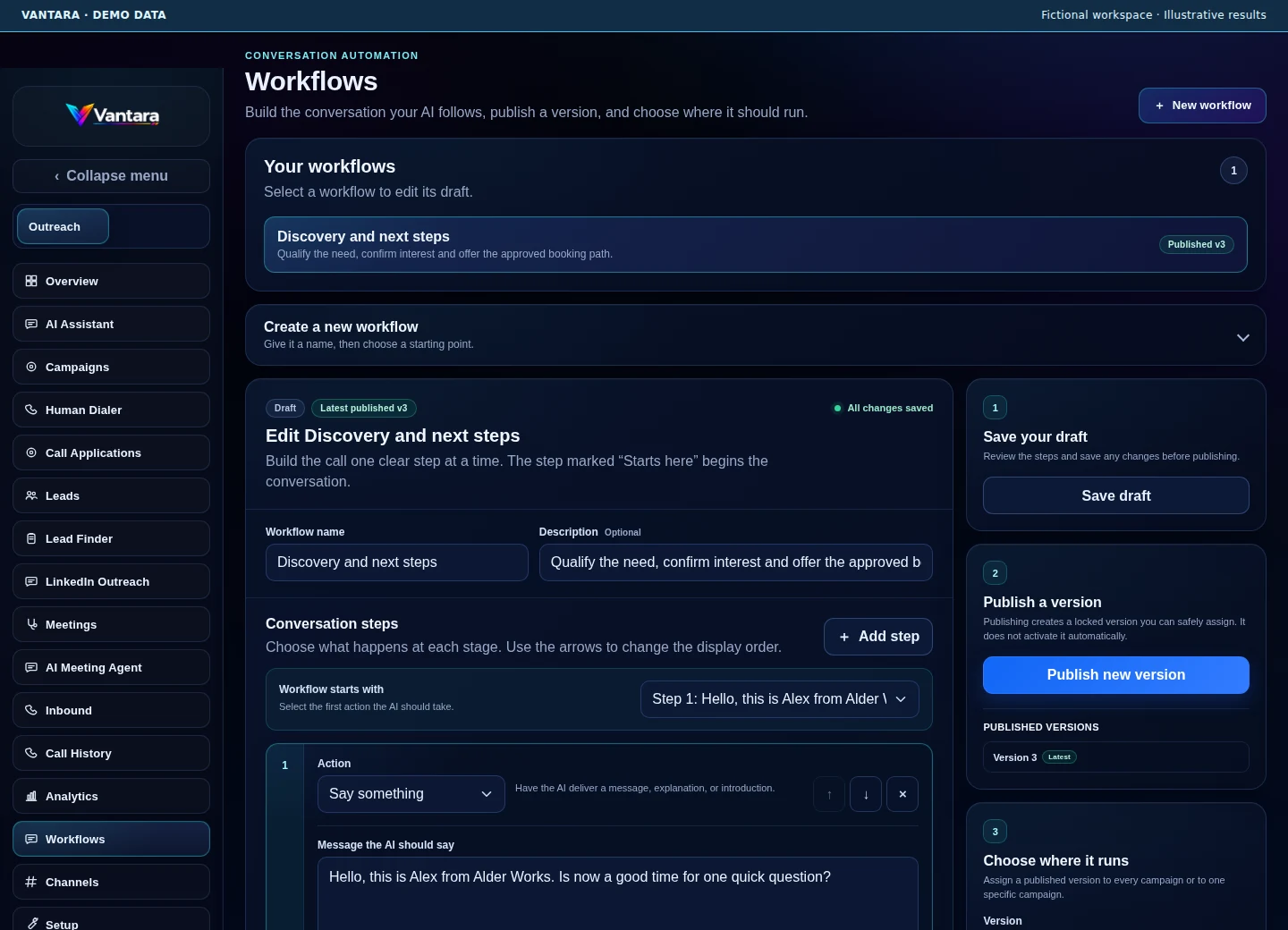
Versioned conversation workflows
Build conversation steps, questions, answer branches and outcomes. Save a draft, publish a version and assign the workflow to its intended scope.
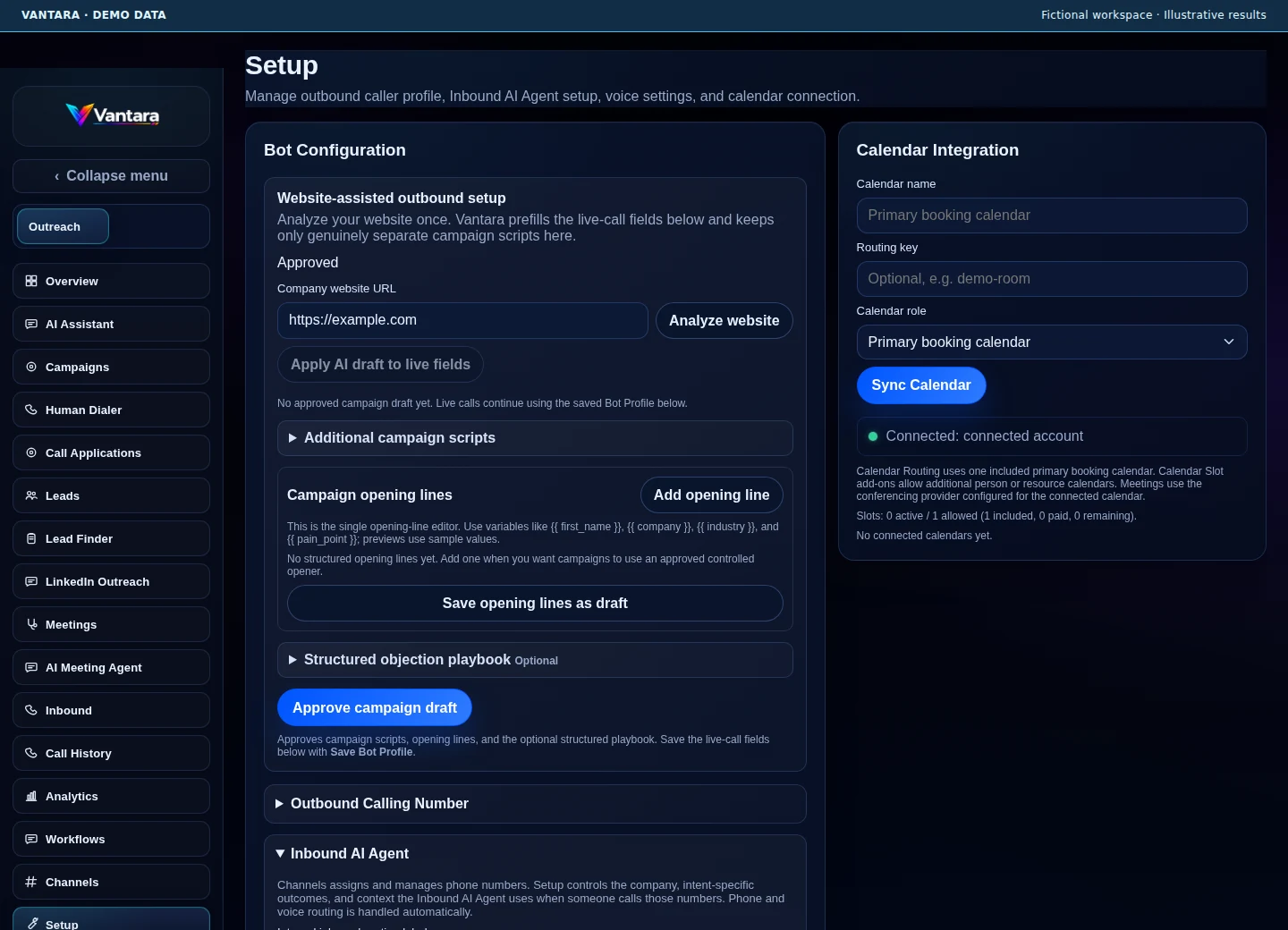
Approved business context
Prepare the business overview, audience, offer, FAQs, objections, caller identity and approved next step. Website-assisted setup creates a draft for review before campaign use.
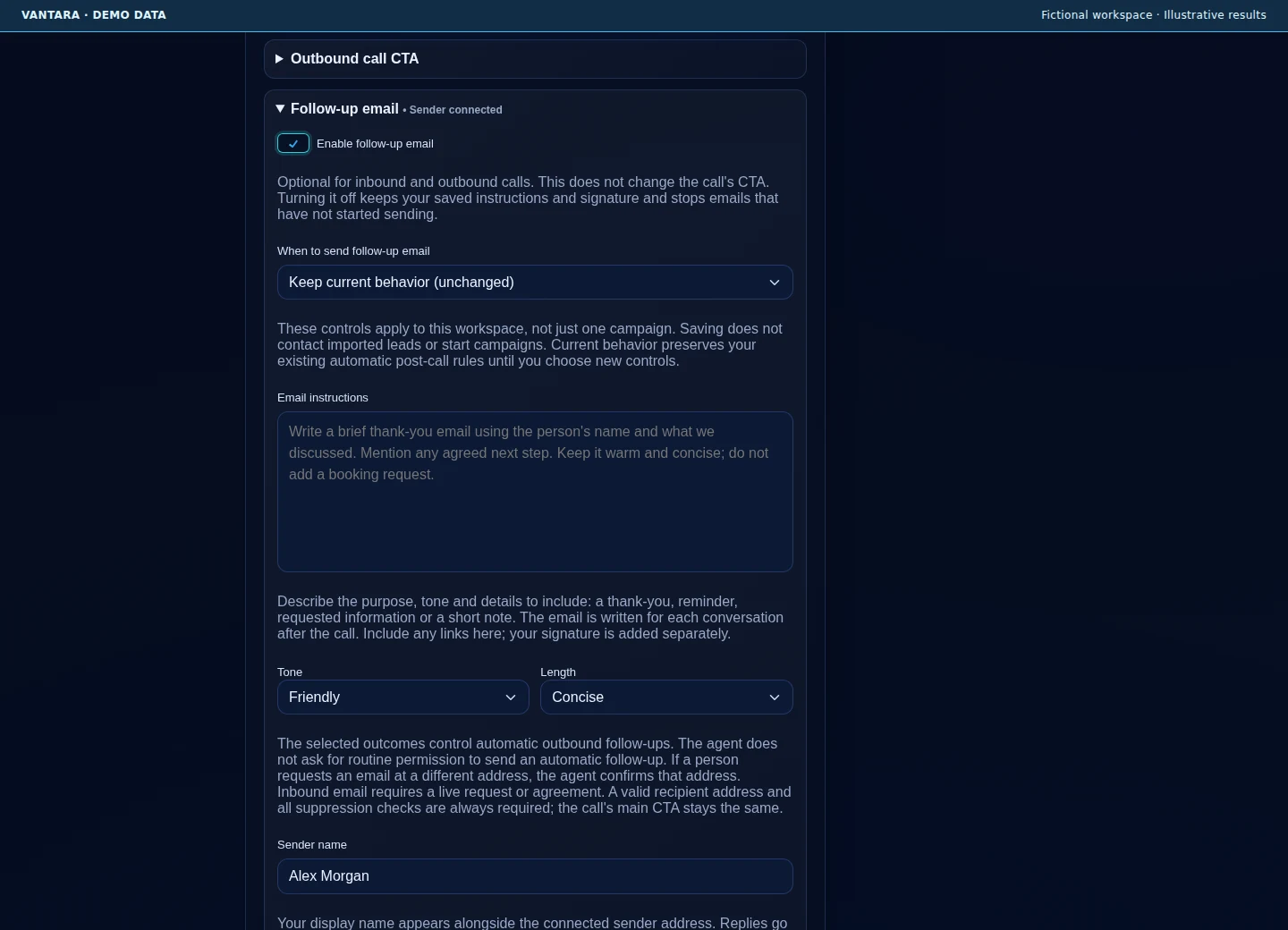
Contextual email follow-up
Configure approved follow-through with a connected sending account, workspace signature and supported attachment. Recipient and delivery controls keep email tied to permitted call context.
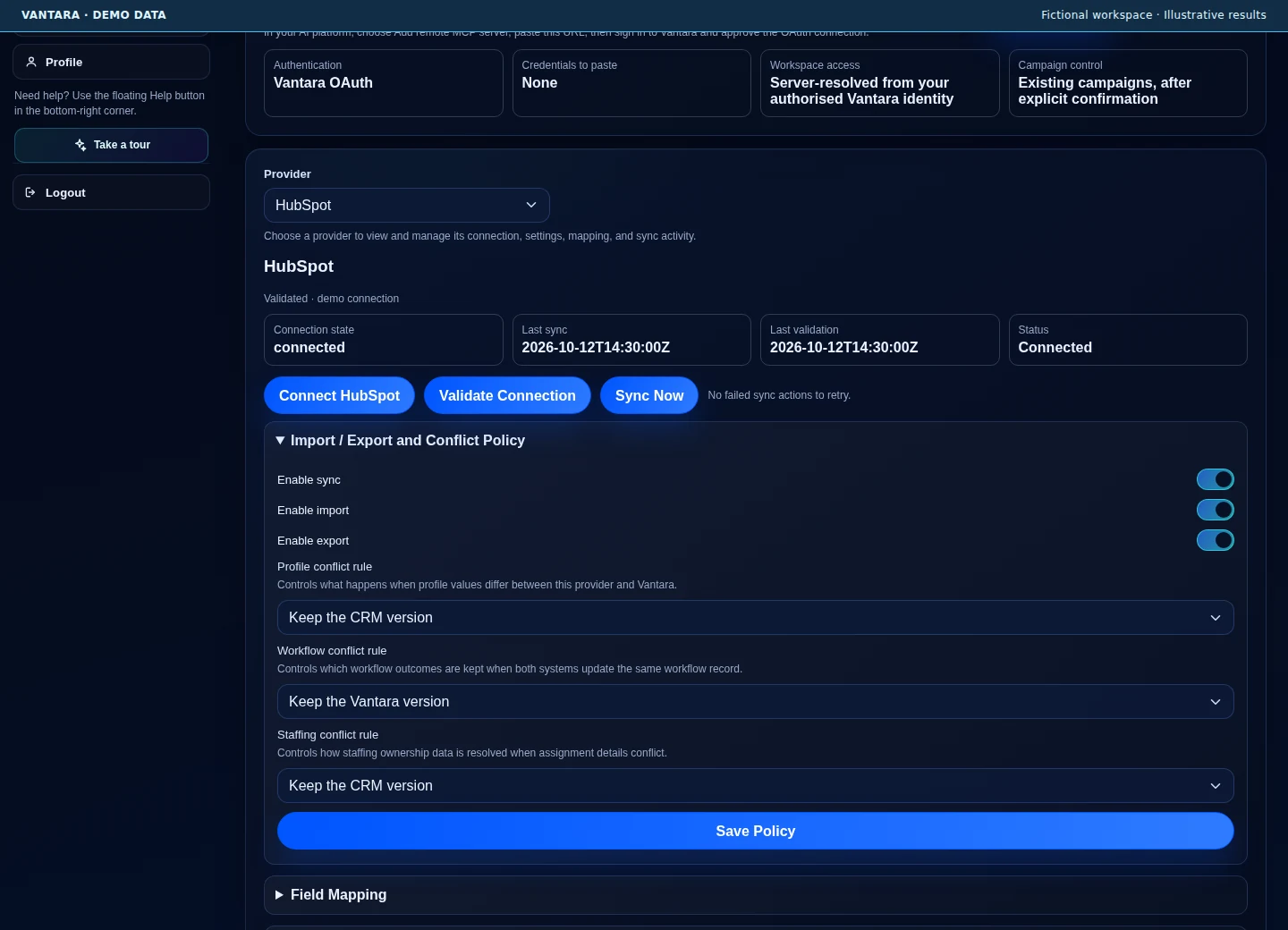
CRM connections and sync controls
Supported adapters include HubSpot, Salesforce, Salesloft and Bullhorn. Review connection state, field mappings, conflict rules and sync activity where the selected adapter supports them.
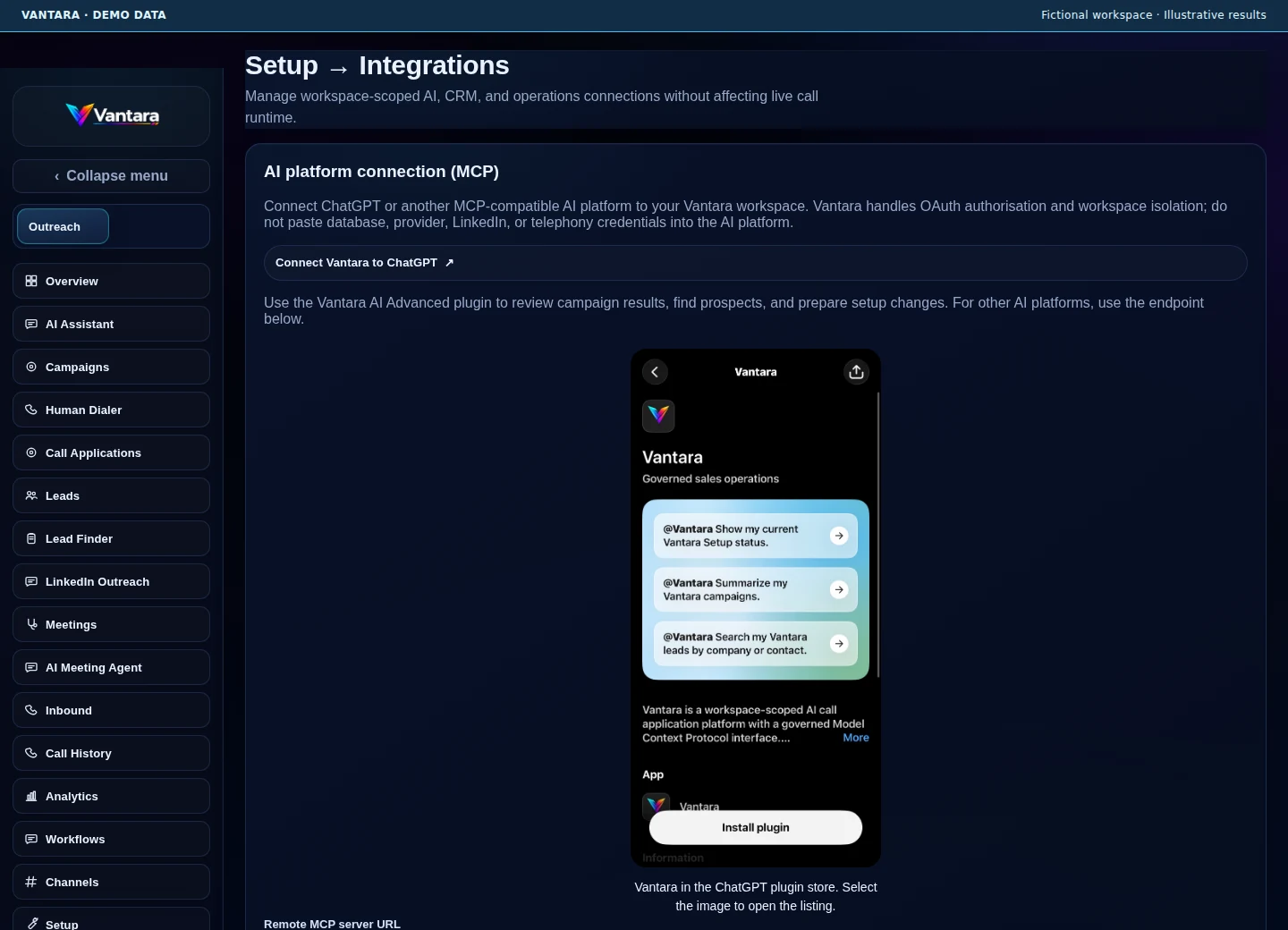
Vantara in ChatGPT and MCP platforms
Connect an authorized account through OAuth to a supported AI platform. Workspace access stays scoped; campaign and calendar actions require relevant authority and explicit confirmation.
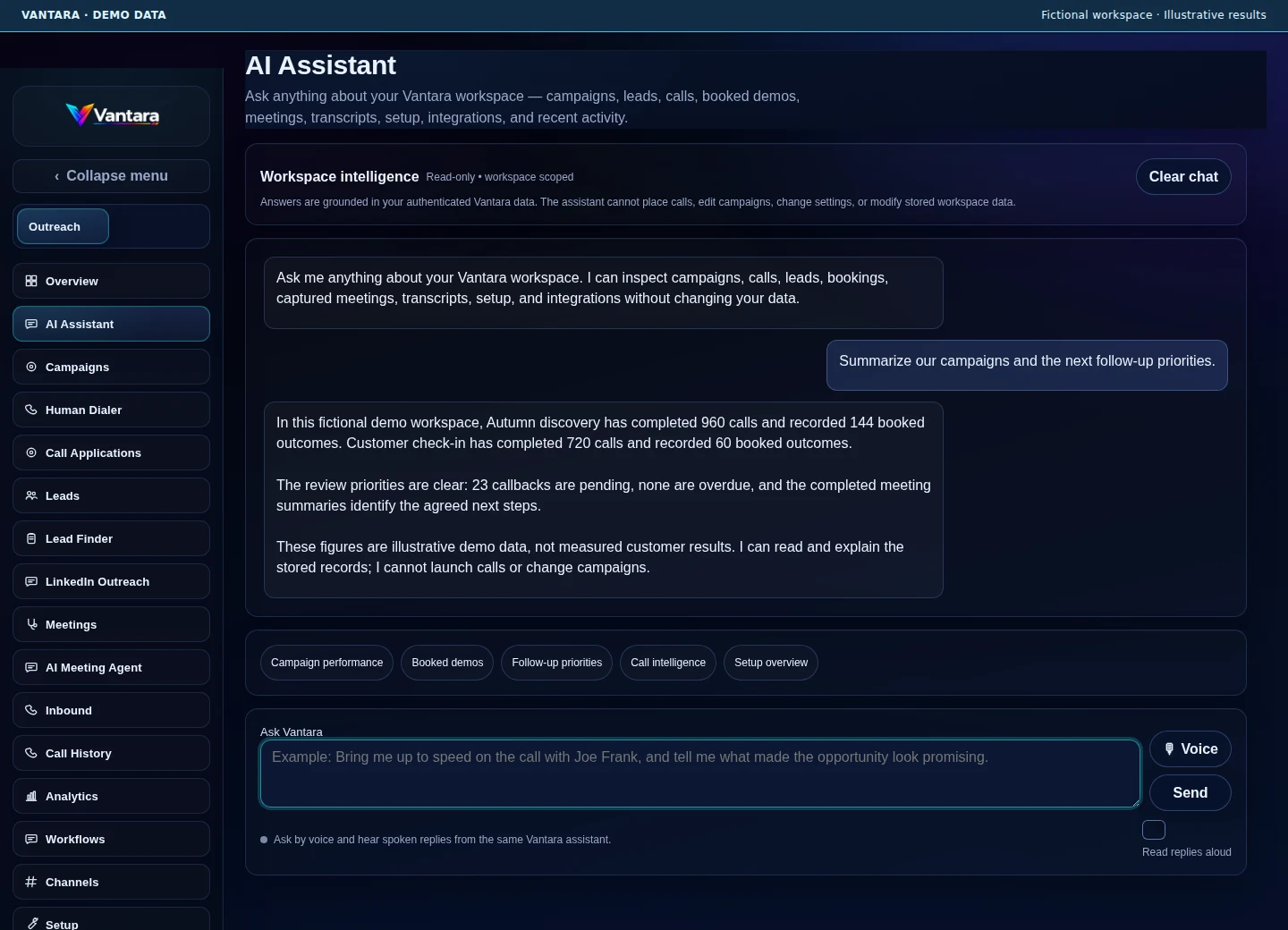
Read-only workspace intelligence
Ask the in-app AI Assistant about authenticated campaigns, leads, calls, bookings, meetings and configuration. It reads stored data and cannot launch calls, edit campaigns or change settings.
Product tour questions
What these screens show.
Are the results shown from real customers?
No. All names, contact details, conversations and metrics in this tour are fictional demo data. The screens demonstrate the interface and configured workflows, not measured customer performance.
Does every workspace include every feature?
No. Features depend on your plan, assigned seats, connected services and configuration. Sales, General Outbound and Front Desk have distinct purposes. Dedicated Scheduler calling requires an enabled execution path; dedicated Service Desk and Call Intelligence activation is not currently exposed.
Can I open or share the screenshots?
Yes. Open any screenshot at full size or download it. Its demo-data label stays in the image when you share it.
Can the in-app AI Assistant launch calls or edit campaigns?
No. The in-app workspace AI Assistant is read-only. Authorized ChatGPT and MCP connections are a separate path, with relevant permissions and explicit confirmation for supported actions.
Explore your use case
See the workflow with your team.
Review the call purpose, connections and next steps that fit your business.